
The display client is available at /display. Each device creates a local identifier and uses a temporary code issued by an administrator.
sequenceDiagram
actor Admin
participant App as PolyWall administration
participant Screen as /display client
Admin->>App: Generate temporary code
App-->>Admin: Show code and expiry
Admin->>Screen: Enter code
Screen->>App: Submit pairing request
App-->>Admin: Show pending screen
Admin->>App: Name, assign channel, approve
App-->>Screen: Allow channel playback
Pair a device
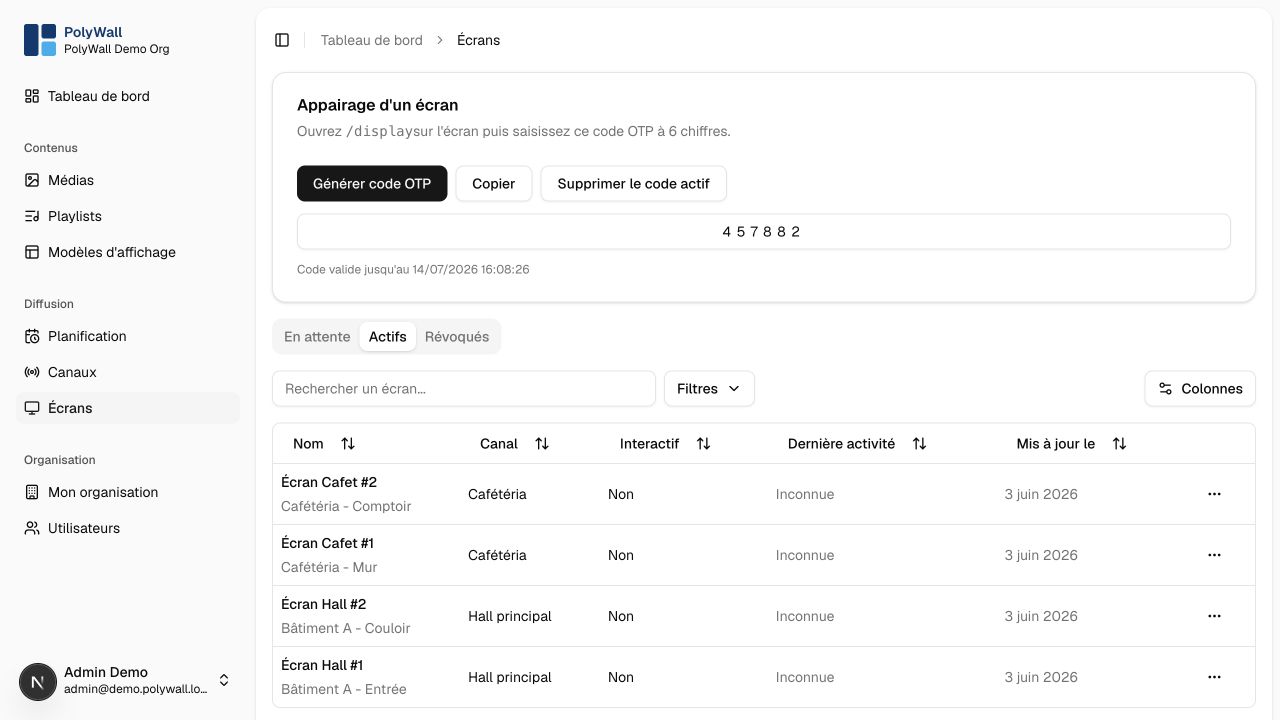
- In Écrans, generate a temporary pairing code.
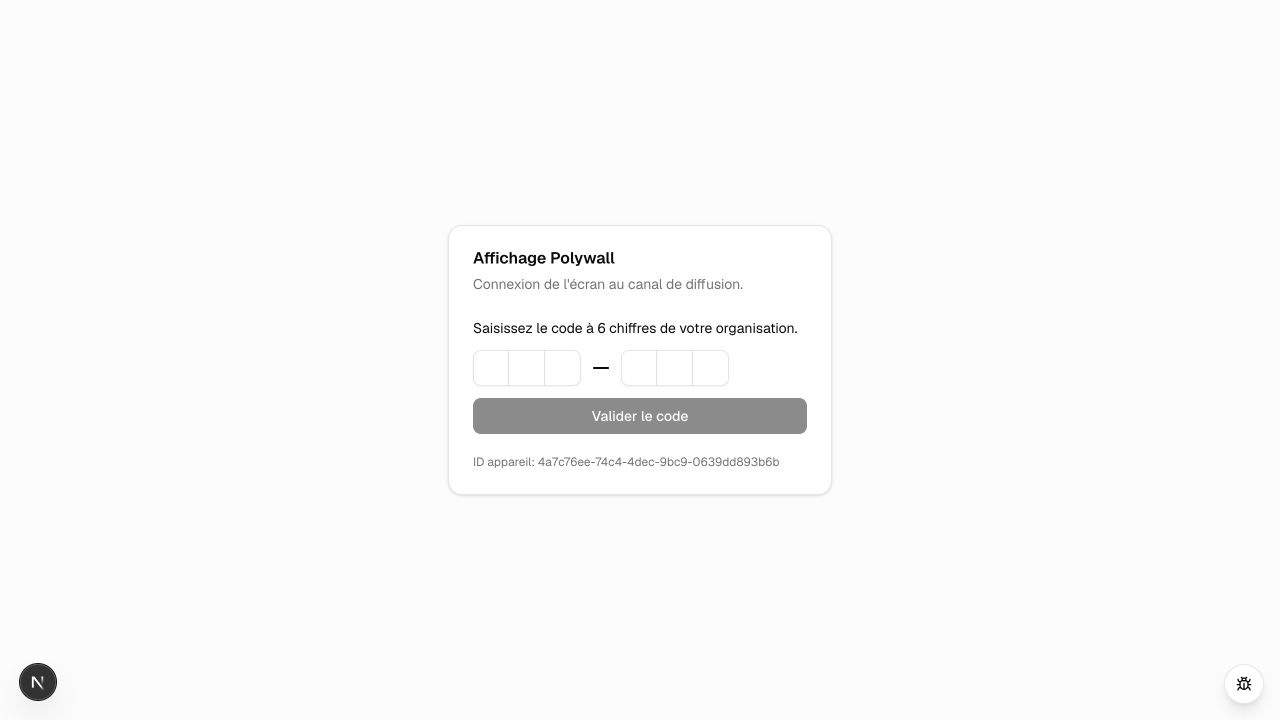
- Open the public PolyWall URL followed by
/displayon the device. - Enter the code before it expires.
- Open the pending screen in the administration interface.
- Set its name, location, and channel, then approve it.
On the device, /display presents a dedicated six-digit code entry screen before it is associated with a channel.
Screens can be pending, active, or revoked. lastSeenAt helps identify offline devices.
Interactive screens
An interactive screen can open an approved URL above the signage player. It currently returns to playback only when the user closes the interactive view manually. there is no inactivity timeout.
Operational advice
Use a dedicated browser profile, automatic launch, full-screen mode, disabled sleep, stable networking, and remote device management. Treat physical access to the device as privileged access.